Does PS Portal Work With a Phone Hotspot? Fixes if It Won't Connect
PS Portal can run on an iPhone or Android hotspot if the signal is fast enough. How to connect, what to check when it fails and what Sony says.
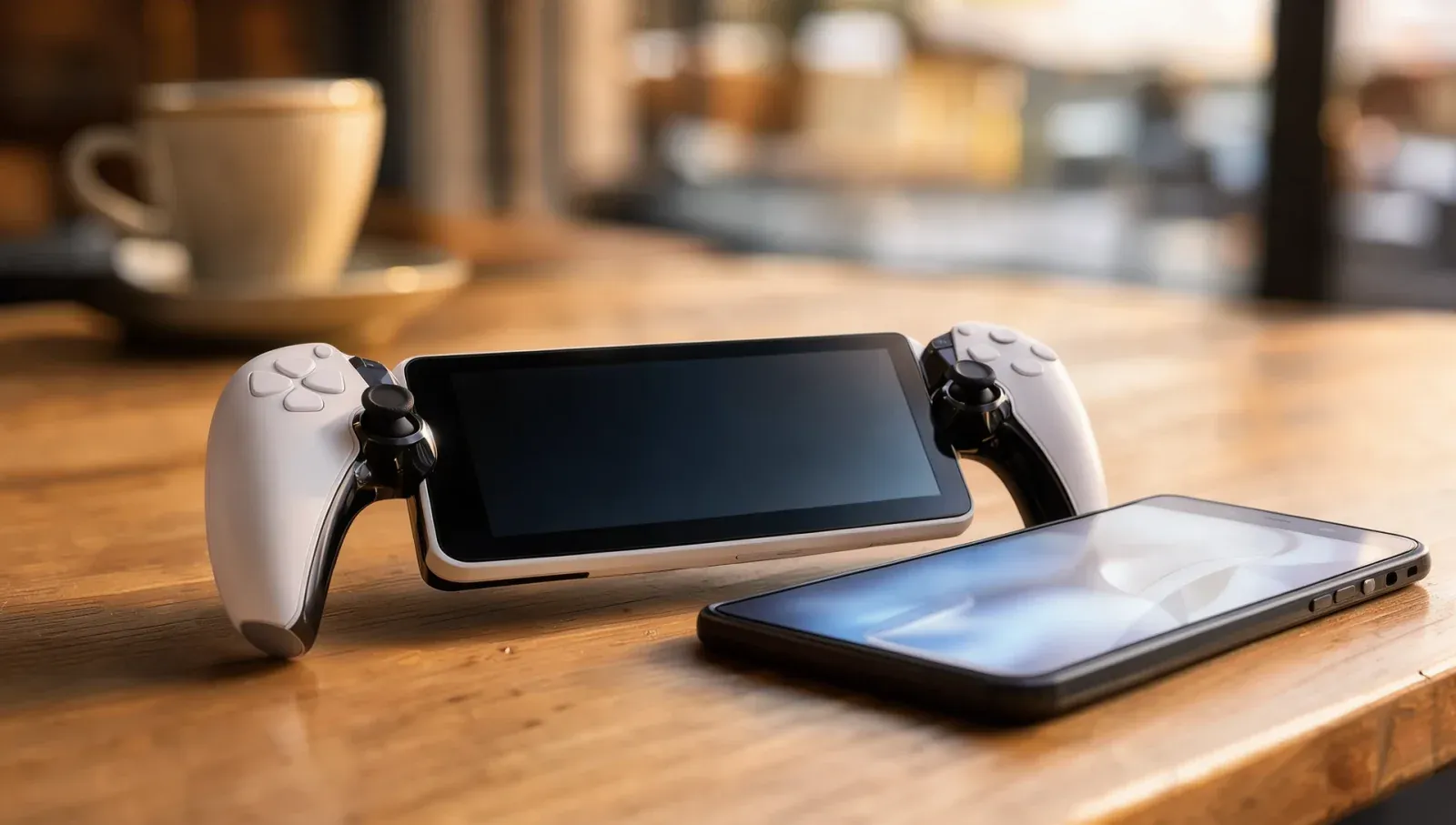
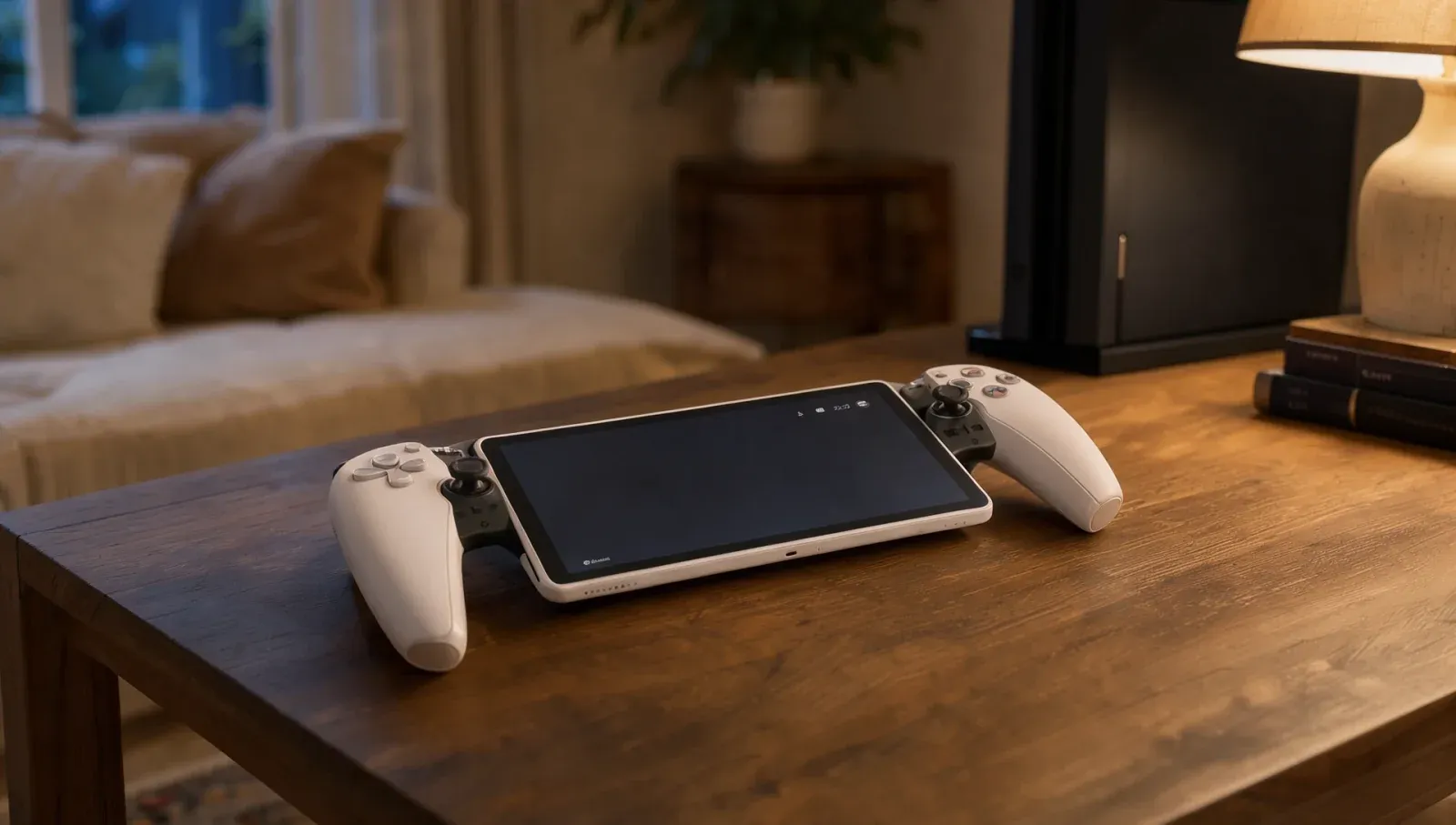
Yes, the PlayStation Portal can run on your phone's hotspot. Sony describes it playing your PS5 over Wi-Fi, and an iPhone or Android hotspot is a Wi-Fi network like any other. Sony's requirement is the same as for any Wi-Fi: at least 5Mbps, with 15Mbps recommended. The catch: none of the Sony PS Portal product and support pages we checked mentions phone hotspots, so the steps have to be pieced together. Here's what Sony, Apple and Google document, and what to check when the Portal won't connect.
Can the PS Portal use mobile data?
Not directly. Sony describes the PS Portal as a device that plays your PS5 "over Wi-Fi" and says it "requires broadband internet Wi-Fi with at least 5Mbps for use". Its Network settings are for choosing a Wi-Fi network, and no Sony page mentions a SIM or mobile data, so on the go you need a Wi-Fi network: a hotspot from your phone, a pocket router, or public Wi-Fi.
Sony's product page is clear that home Wi-Fi isn't required: the Portal "can also be played wherever you have access to broadband internet Wi-Fi with at least 5Mbps". Sony calls your home Wi-Fi "a great option" because you control its quality.
Sony specifies at least 5 Mbps for the PlayStation Portal and recommends 15 Mbps.
What to set up before you leave home
Get the home side right before you rely on a hotspot. Sony's product page and its Remote Play guide for PS Portal list these steps:
- Finish the Portal's setup on your home Wi-Fi. Sony's product page says you need to have completed the initial setup on your home Wi-Fi network before connecting to public Wi-Fi networks.
- Turn on Remote Play on the PS5: Settings > System > Remote Play > Enable Remote Play, for the user who will play.
- Let the PS5 wake from rest mode: Settings > System > Power Saving > Features Available in Rest Mode, then turn on Stay Connected to the Internet and Enable Turning on PS5 from Network.
- Use the same account on the PS5 and the Portal, and update both to the latest system software.
- Test it at home first. Sony warns that the Portal "won't be able to search and connect to your PS5 console if it's been a while since you last signed in", and advises checking that it connects properly near the PS5 before trying from outside your home.
Sony also recommends connecting the PS5 to your router with a cable. On a hotspot, the game still streams from your PS5 at home, which Sony says must be connected to broadband internet, so your home connection matters as well as your phone signal.
How to connect the PS Portal to an iPhone hotspot
Apple's steps for Personal Hotspot:
- On the iPhone, open Settings, tap Personal Hotspot (or Cellular, then Personal Hotspot) and turn on Allow Others to Join. If you change the Wi-Fi password, Apple says it must be at least eight characters, using only ASCII characters: English letters, numbers and some punctuation marks.
- Stay on that screen until the Portal has connected.
- On the Portal, swipe left from the top right of the screen to open the quick menu, then go to Settings > Network > Set Up Internet Connection and pick your iPhone's name from the list.
If Personal Hotspot is dimmed or unavailable, Apple says Cellular Data must be on and your carrier must support Personal Hotspot.
How to connect it to an Android hotspot
Google's steps for Android phones:
- Swipe down from the top of the screen and tap Hotspot (if it isn't there, tap Edit and drag it into Quick Settings).
- To see or change the hotspot name and password, touch and hold Hotspot.
- On the Portal, open Settings > Network > Set Up Internet Connection and select the hotspot.
Google notes that some of these steps only work on Android 14 and up. It also warns that "some mobile carriers limit or charge extra for tethering", so check your plan first.
Why won't my PS Portal connect to my hotspot?
Work through the official fixes in this order:
- Restart both devices. Apple's checklist for a hotspot that isn't working starts with checking that Allow Others to Join is on, then restarting the iPhone and the device trying to join. To restart the Portal, press and hold the power button and select Restart.
- Update everything. Sony says updating the Portal's system software "usually fixes most issues" (quick menu > Settings > System > System Software > Update System Software). The latest version on Sony's page is 7.3.2. Apple also tells you to update the iPhone.
- Check the Portal's network status. Since system software 6.0.0, the quick menu has Troubleshoot > Show Network Status.
- Turn on Maximize Compatibility (iPhone 12 and later). Apple suggests it when a device can't join Personal Hotspot over Wi-Fi. Apple also warns that it may reduce internet performance and Wi-Fi security for connected devices, and Sony recommends a 5GHz connection for the Portal, so turn it on only if the Portal can't see or join the hotspot at all.
- Reset the iPhone's network settings (Settings > General > Transfer or Reset iPhone > Reset > Reset Network Settings). It's the last of Apple's first steps, and it also resets saved Wi-Fi networks and passwords, cellular settings, and VPN and APN settings.
- Ask your carrier. Apple and Google both say hotspot use depends on your carrier and plan. If it still won't connect, ask your mobile carrier whether your plan allows hotspot gaming.
The Portal joins the hotspot but can't reach the PS5
If the Portal connects to your phone but shows an error when it tries to reach the console, Sony's checklist for "Can't connect to your paired PS5 console?" points at the PS5 side:
- Remote Play is enabled on the PS5 for your user.
- Stay Connected to the Internet and Enable Turning on PS5 from Network are on.
- The PS5 is connected to the internet, and you're signed in with the same account on both devices.
- The PS5 uses a wired connection to the router if possible.
Remember that Sony says the PS5 must be powered on fully or in rest mode. If it's fully switched off, Remote Play won't start.
Is a phone hotspot fast enough for the PS Portal?
It can be, but it's the weakest link. Sony's figures:
Use | Minimum | Recommended |
|---|---|---|
Remote Play from your PS5 | 5Mbps upload and download | 15Mbps or more |
Cloud Streaming, start a session | 5Mbps | |
Cloud Streaming at 720p | 7Mbps | |
Cloud Streaming at 1080p | 13Mbps |
For Remote Play, the speed has to be there at both ends: your phone's mobile connection and your home internet. Since system software 7.0.0, the quick menu's Max Resolution option works in Remote Play as well as Cloud Streaming. On its Cloud Streaming page, Sony recommends 720p if your connection "isn't fast enough" or you're worried about stability.
Can you play on a hotspot without your PS5?
Yes, with Cloud Streaming. PlayStation Plus Premium members can stream select PS5 games from the Game Catalog, the Classics Catalog and their own digital library straight to the Portal, even if the PS5 is powered off or being used by another account. Sony lists these limits:
- Premium only, and not for child accounts.
- PS5 games only: no PS3 or PS4 games, and only titles eligible for streaming.
- Selected countries: as of 27 November, Sony's page lists Canada, United States, Japan, Austria, Belgium, Bulgaria, Croatia, Czech Republic, Denmark, Finland, France, Germany, Greece, Hungary, Ireland, Italy, Luxembourg, Malta, Netherlands, Norway, Poland, Portugal, Republic of Cyprus, Romania, Slovakia, Slovenia, South Korea, Spain, Sweden, Switzerland and United Kingdom. Overseas territories belonging to those countries are excluded.
What Premium costs in each country is in our PS Plus price comparison.
What about hotel and café Wi-Fi?
Since system software 3.0.0, the Portal can join public networks with a sign-in page, such as those in hotels, cafés and airports. Sony's blog explains that the Portal shows a QR code: you scan it with your phone and finish the sign-in in its browser. Version 3.0.1 added certain public networks on 5GHz, though Sony says that, to comply with regulations in various countries and regions, the Portal might not support certain public networks. A phone hotspot doesn't need any of this: you just pick it and type the password.
FAQ
Does the PS Portal have mobile data?
Not according to Sony: every Sony page describes it running over Wi-Fi, and none mentions a SIM or mobile data. Away from Wi-Fi you need a phone hotspot or another Wi-Fi source.
Can you use the PS Portal away from home?
Yes, on any Wi-Fi with at least 5Mbps (15Mbps recommended), including a phone hotspot or public Wi-Fi. Your PS5 must stay at home, on or in rest mode, connected to the internet. Sony recommends finishing setup on your home Wi-Fi and testing the connection near the PS5 first.
Does the PS Portal work with an iPhone hotspot?
It can. Join it from Settings > Network on the Portal while the iPhone's Personal Hotspot screen is open. If it won't connect, restart both devices, update them, try Maximize Compatibility and check with your carrier.
Does the PS Portal work with an Android hotspot?
Yes, in the same way. Turn on Hotspot on the phone, then select it on the Portal. Google warns that some carriers limit or charge extra for tethering.
How much data does the PS Portal use?
Sony doesn't publish a data-per-hour figure for the PS Portal, for Remote Play or for Cloud Streaming. On its page for Remote Play on mobile devices, it warns that "Remote Play uses a lot more data than most video streaming services" and that you should be careful not to exceed your data cap.
Do you need PS Plus to use the PS Portal on a hotspot?
Not for Remote Play from your own PS5: Sony's product page says the Portal and Remote Play don't require a PlayStation Plus membership, although a game that needs PS Plus for multiplayer still needs it for those features. Sony's Cloud Streaming page says streaming without the console needs an active PS Plus Premium membership. The two pages agree.
Does the PS Portal work with a PS4?
No. Sony says the Portal connects to PS5 consoles only. It can still play compatible PS4 games installed on your PS5, as our guide to PS4 games on the PS Portal explains.
Sony also documents which headsets the Portal accepts: wired 3.5mm models or PlayStation Link devices such as the Pulse Elite, a headset we also checked for Switch 2 compatibility. More of our PlayStation guides are on the PlayStation hub.
Source: PlayStation Support: troubleshoot PS Portal, PlayStation Support: Remote Play on PS Portal