Steam Remote Play Black Bars: Valve Adds a Stretch and Zoom Option
Steam's 11 November update adds a Remote Play Display Style setting to stretch or zoom the stream. What it does, where it isn't yet, and the HDR changes.
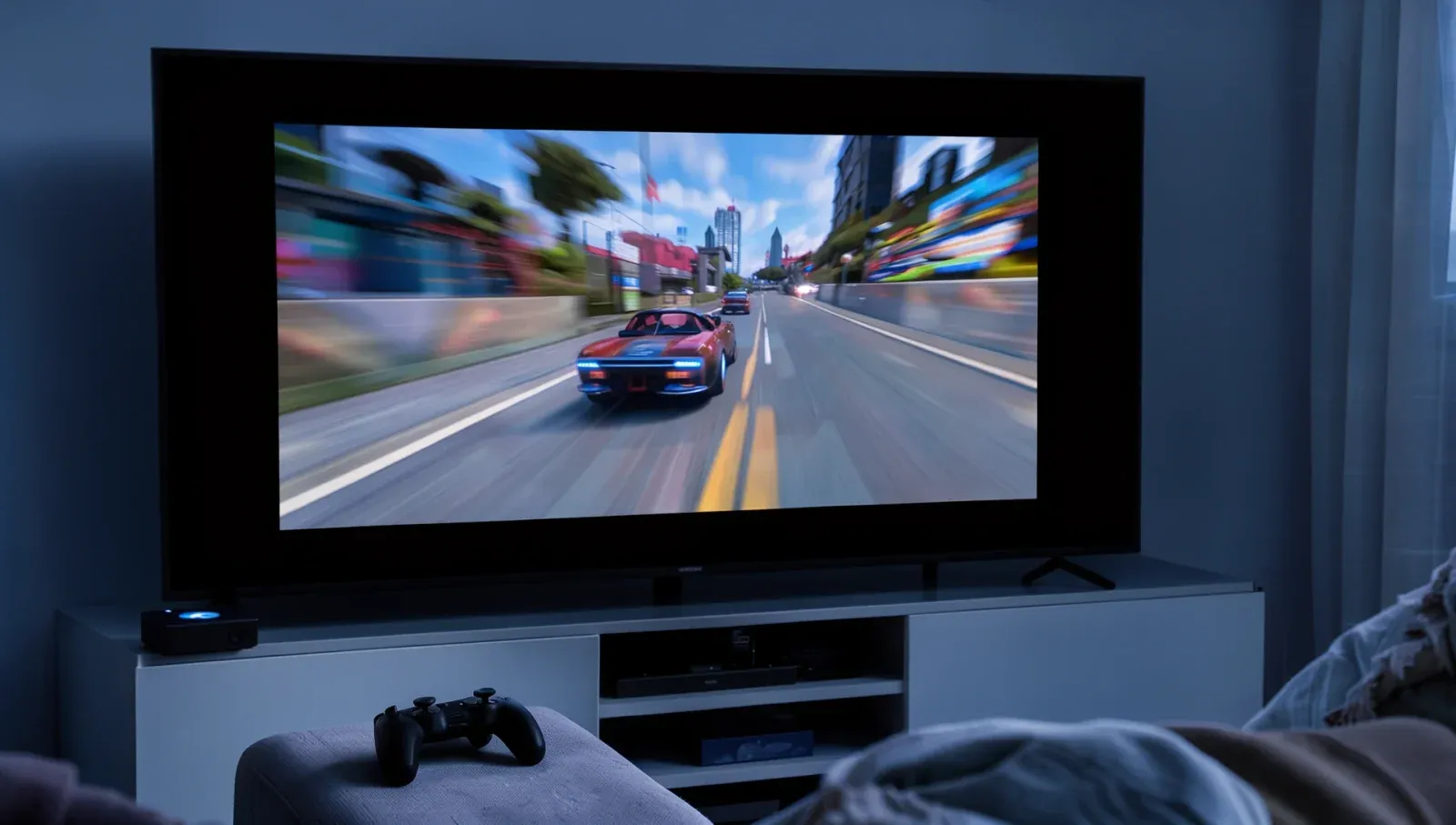
Black bars around a Steam Remote Play stream have been a long-running complaint: stream a 16:9 game from your PC to a Steam Deck, whose screen is 1280 x 800, or to an ultrawide or phone, and the picture doesn't fill the display. Valve's Steam client update of 11 November adds a setting aimed squarely at that, alongside a reworked set of HDR options. Here's what Valve's notes confirm, and what they leave out.
How do I get rid of black bars in Steam Remote Play?
Update Steam and use the new Display Style setting. Valve's 11 November release notes say it was added "to allow stretching and zooming when the stream is a different aspect ratio than the client display". In practice, stretching fills the screen by distorting the picture, while zooming fills it by cutting off its edges. Before this, the stream kept its own shape and the leftover space stayed black.
The setting first appeared in the Steam beta client on 15 October and reached the stable client on 11 November, so you no longer need the beta to get it.
Where is the Display Style setting?
Valve's notes list it under Remote Play but don't give a menu path. Because it concerns the "client display", it belongs to the device you're streaming to (the Steam Deck, laptop or second PC running Steam), not the gaming PC. Valve's Remote Play support page already points to the Remote Play section of Steam's settings for quality, bandwidth and maximum capture resolution, so that's the first place to look.
Does it work in the Steam Link app?
Not confirmed. The Steam Link app's current notes on Google Play (updated 27 October) and the App Store mention HDR and reorganised streaming settings, but no stretch or zoom option. For now, Valve has only announced Display Style in the Steam client.
Why does the stream not fill my screen?
The stream keeps the shape of the picture on the PC. If that doesn't match your screen, Steam fits it in and leaves black space. Valve's support page notes you can change the game's resolution on the PC and cap the capture resolution in Remote Play's settings, so a resolution with the same shape as the screen you stream to (16:10 for a Steam Deck, for example) avoids the bars without stretching or cropping anything.
What changed with Remote Play HDR?
The same update reworks HDR, which Valve had already tested in the beta since October:
- A new HDR setting with three options: Automatic (on when HDR content is enabled), On (always on, which Valve says allows brighter SDR content) and Off.
- A brightness slider in the streaming overlay.
- HDR is back on Steam Deck OLED when streaming.
- More host systems: HDR capture now works from macOS and from desktop Linux using PipeWire, as well as from Windows games and desktop.
- Android phones: HDR works on Android 15 and newer. Valve's client notes point to the beta Steam Link app, while the Google Play listing now lists HDR on Android 15 phones as well.
Valve also says local streams start faster, and the Steam Controller's "..." button now passes through to the PC. The update is the same one that made Steam Achievement Sets available to everyone.