Does the New Steam Controller Work With Switch 2, PS5, Mac or Without Steam?
What Valve says about the 2026 Steam Controller on Switch 2, PS5, Xbox, Mac, phones and without Steam, plus Bluetooth pairing and puck fixes.
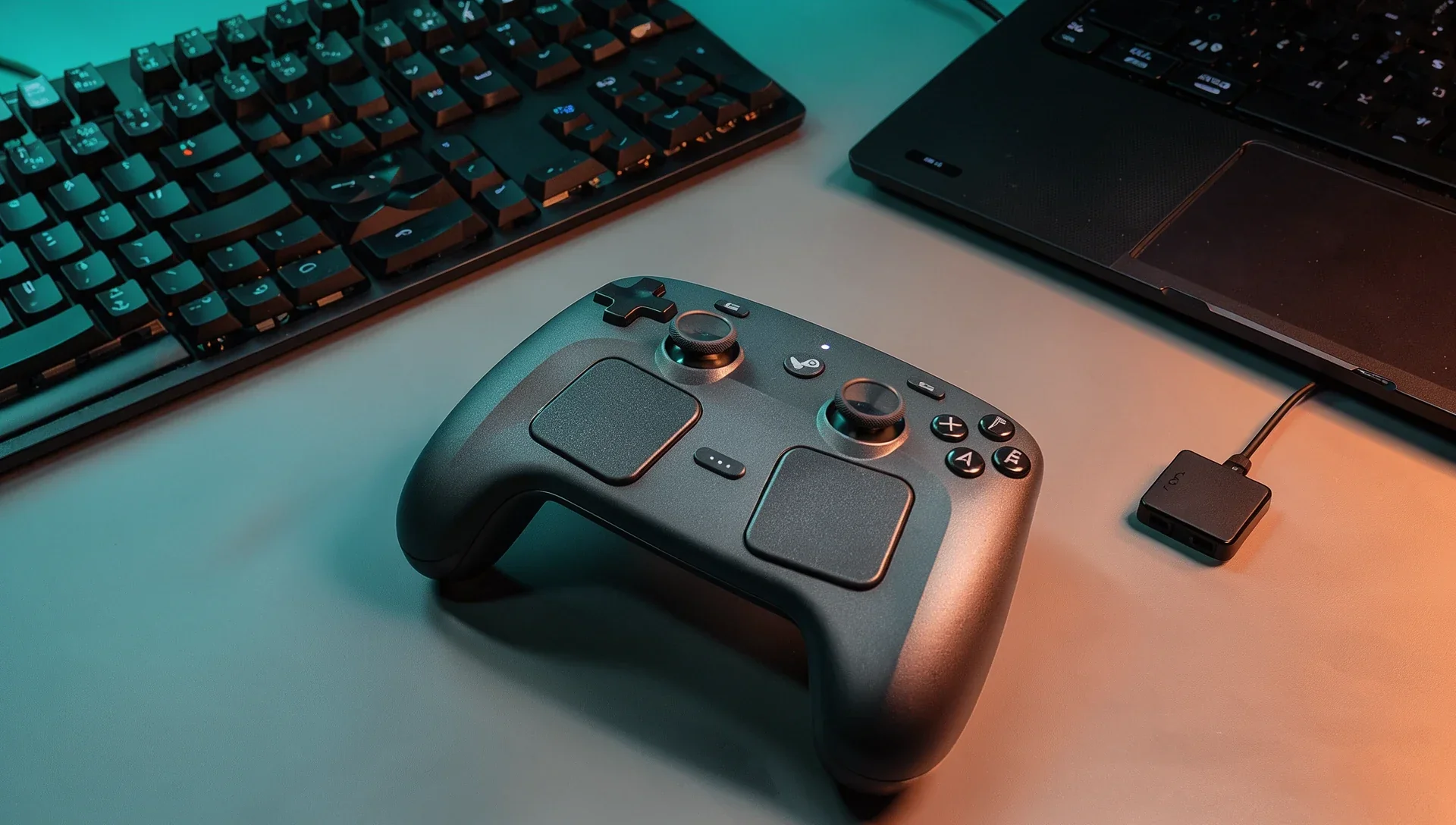
Valve's new Steam Controller, on sale since 4 May at $99, is built to play "wherever Steam is". That answers most compatibility questions, but not all. Here's what Valve's product page, support guides and Steam update notes say, device by device, plus how pairing works and what to try when the puck goes missing.
How does the Steam Controller connect?
Three ways, according to Valve's support guide, each with its own LED colour:
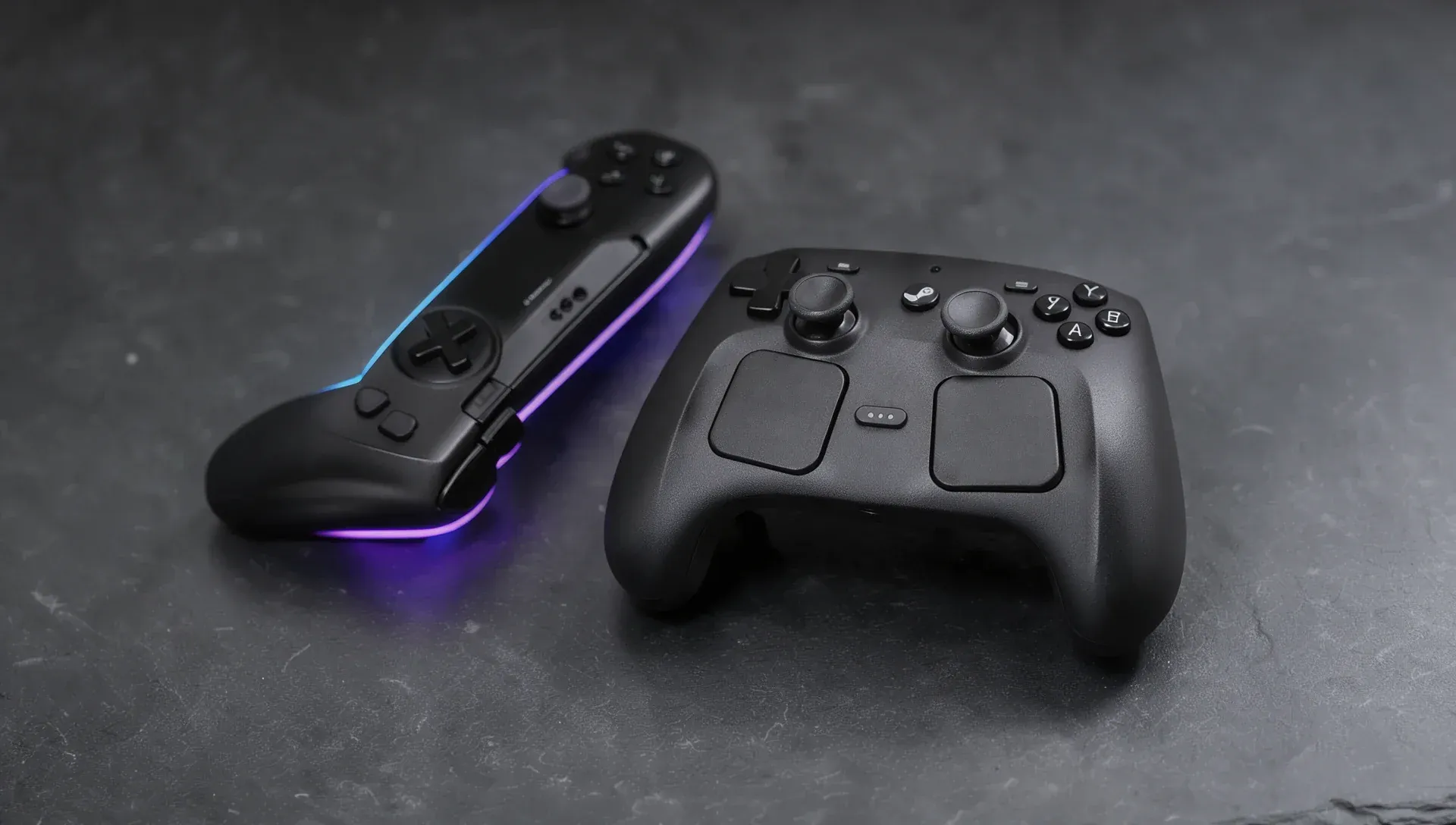
- The puck (white): Valve's own 2.4GHz wireless link, the mode it recommends. It plugs in over USB-C, takes up to four controllers and doubles as a magnetic charger.
- Bluetooth (blue): 4.2 at minimum, 5.0 or newer recommended.
- USB-C cable (green): works at any time.
Does the Steam Controller work without Steam?
Mostly not. Valve's guide is blunt: "Steam must be running on your PC for the Steam Controller to function properly." Non-Steam games often work once added to your Steam library, but Valve warns that games with anti-cheat that blocks emulated input, or without Steam Overlay support, may refuse.
Two narrow exceptions: SteamOS 3.8.28 (25 September) added the controller to SteamOS's built-in hid_steam driver, so native controller apps work there without Steam running, and a 13 October Steam update lets it switch to what Valve calls Lizard mode where Windows blocks Steam Input, such as UAC prompts.
Does it work on Mac?
Yes, with a catch. Valve warns that some Steam games won't work with it on macOS because they rely on Apple's Game Controller framework, and says it has no timeline for a fix. If it pairs but does nothing, allow Steam under Privacy & Security > Input Monitoring.
Steam Deck, Steam Machine, phones and tablets
All supported. The Steam Machine pairs with the controller without the puck and can be woken with it (here's which other controllers work with the Steam Machine). Phones and tablets work through the Steam Link app; Valve doesn't say which connection to use there, but Bluetooth needs no extra hardware.
Does the Steam Controller work with Switch 2, PS5 or Xbox?
Not officially. Valve lists no console, and the controller needs Steam running. The only route is unofficial: OpenPuck, a DIY replacement puck by developer safijari, built on a cheap Pro Micro nRF52840 board. Hackaday reported on 13 July that it can emulate Xbox, Switch or PlayStation controllers, with a Switch seeing it as an official wired pad with motion and haptics. Hackaday doesn't say which console generations were tested, it can't charge the controller, and Valve isn't involved.
How do you pair it, and how many devices does it remember?
Four: two puck slots and two Bluetooth slots, a right and a left of each. Turn the controller off (hold Steam for about five seconds), then:
- Puck: hold A + R1 + Steam for the default right slot, or A + L1 + Steam for the left.
- Bluetooth: hold B + R1 + Steam (or B + L1) to reconnect; keep holding until a second chime and double blue pulses to pair a new device. It appears as "Steam Ctrl (BT)".
- USB: plug it in while off, or hold Steam while plugging in.
Pairing overwrites the slot you're in, so switch to the left slot before pairing a second machine.
What to do if the puck isn't detected
Valve's support pages suggest, in order:
- Update Steam and the controller and puck firmware (Settings > Controller, or Settings > System > Hardware Updates on SteamOS), then restart.
- Re-pair: plug the puck in with Steam open and no game running, set the controller on it and follow the prompt.
- Check the LED. Blue means Bluetooth mode, so reboot with A + R1 + Steam.
- An odd boot sound with a solid white light means the puck can't talk to your PC: try another cable, as some are charge-only.
- If the puck is missing from Settings > Controller, try another USB port and move headsets, sound cards, webcams and other dongles off the same hub.
- For dropouts, check Signal Strength under Settings > Controller > Details, keep a clear line of sight and move Wi-Fi access points, USB 3 drives and capture cards away from the puck.