Xbox Cloud Gaming Now Lets You Use Your Phone as a Controller on Your Smart TV
Xbox Cloud Gaming previews phone-as-controller on Smart TVs, plus cloud connect, a Wi-Fi mode for the Nano Controller in the US. How to try both.
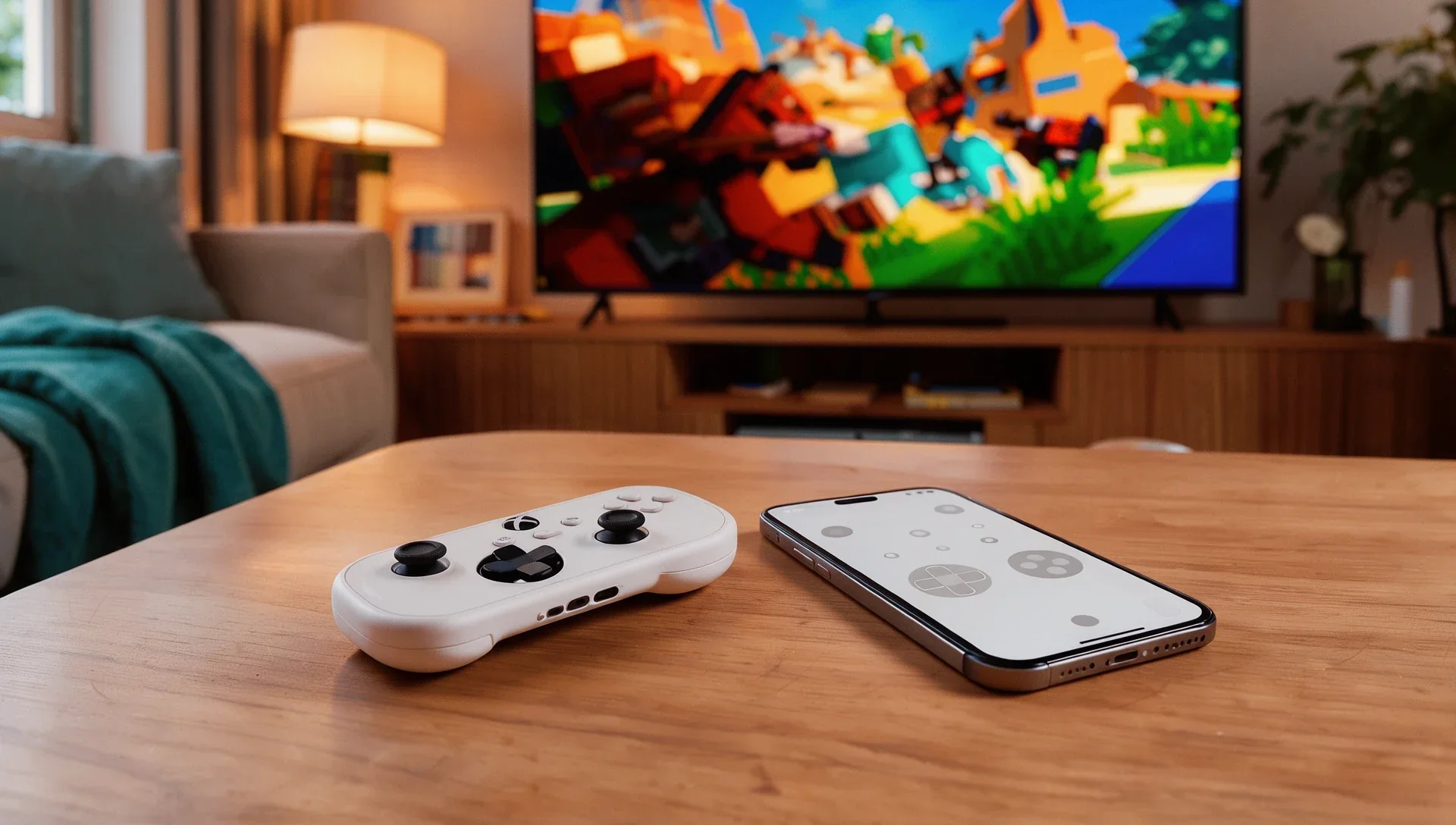
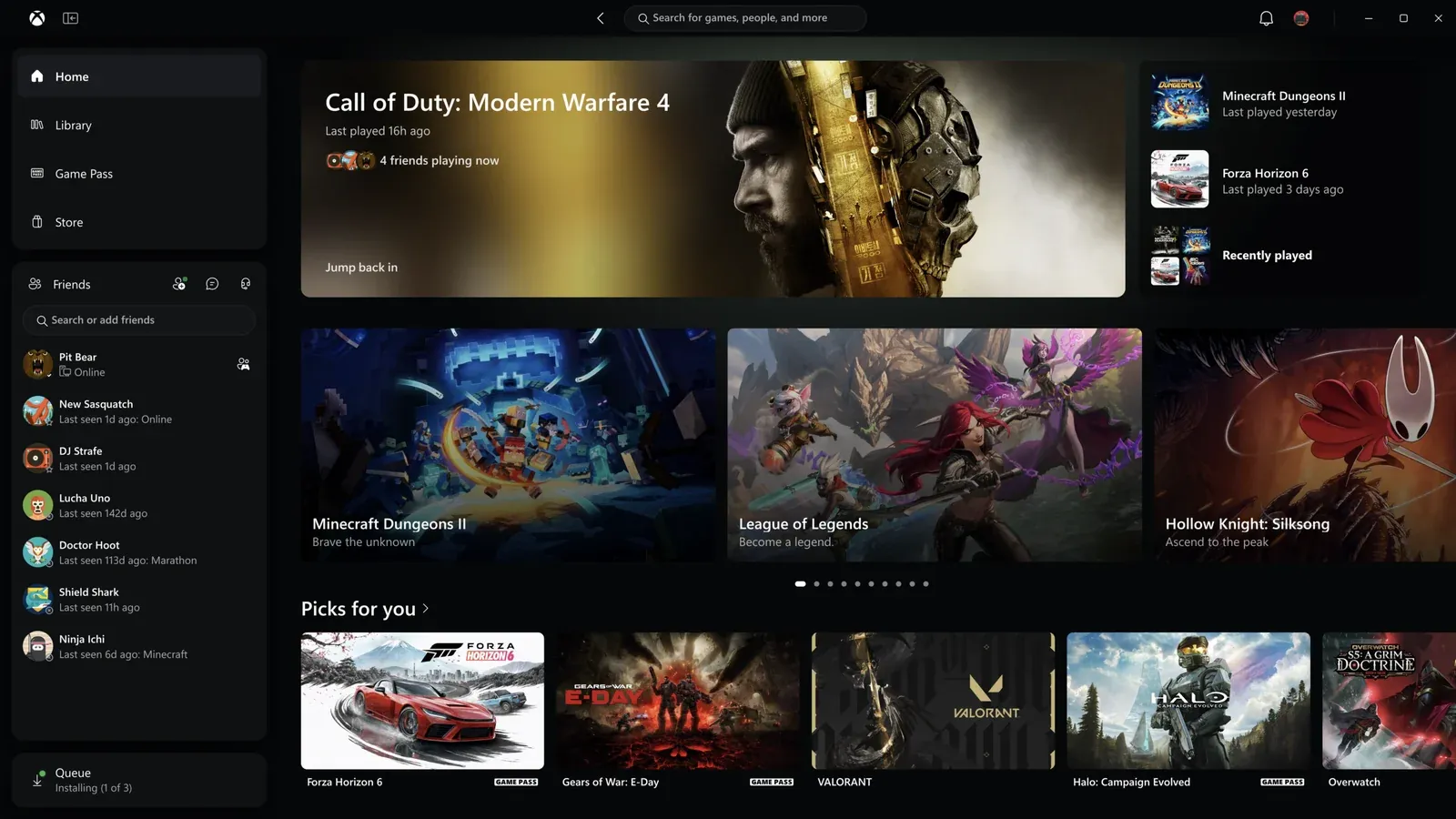
Xbox Cloud Gaming started testing two new ways to play on 4 November. On supported Smart TVs, you can now use your phone as the controller when you don't have one nearby. And in the US, the new Xbox Nano Controller can connect straight to the cloud server over Wi-Fi, which Microsoft says can make games feel more responsive.
Both are previews. Microsoft warns that availability, supported games and supported devices may be limited while it collects feedback.
Your phone as a controller on a Smart TV
The phone controller works with supported Android and iOS phones. The controls open in your phone's browser, so there's no app to install, and some games get on-screen controls tailored to how they play.
To try it:
- Make sure your Smart TV's Xbox experience is up to date.
- On the TV, turn on Preview Features under Settings > Account.
- Launch a game without a physical controller connected. You'll get the option to use your phone for that session, and you connect by scanning the QR code shown on the TV.
It's rolling out now on supported TVs in every country where Xbox Cloud Gaming is available.
Cloud connect: the Nano Controller over Wi-Fi
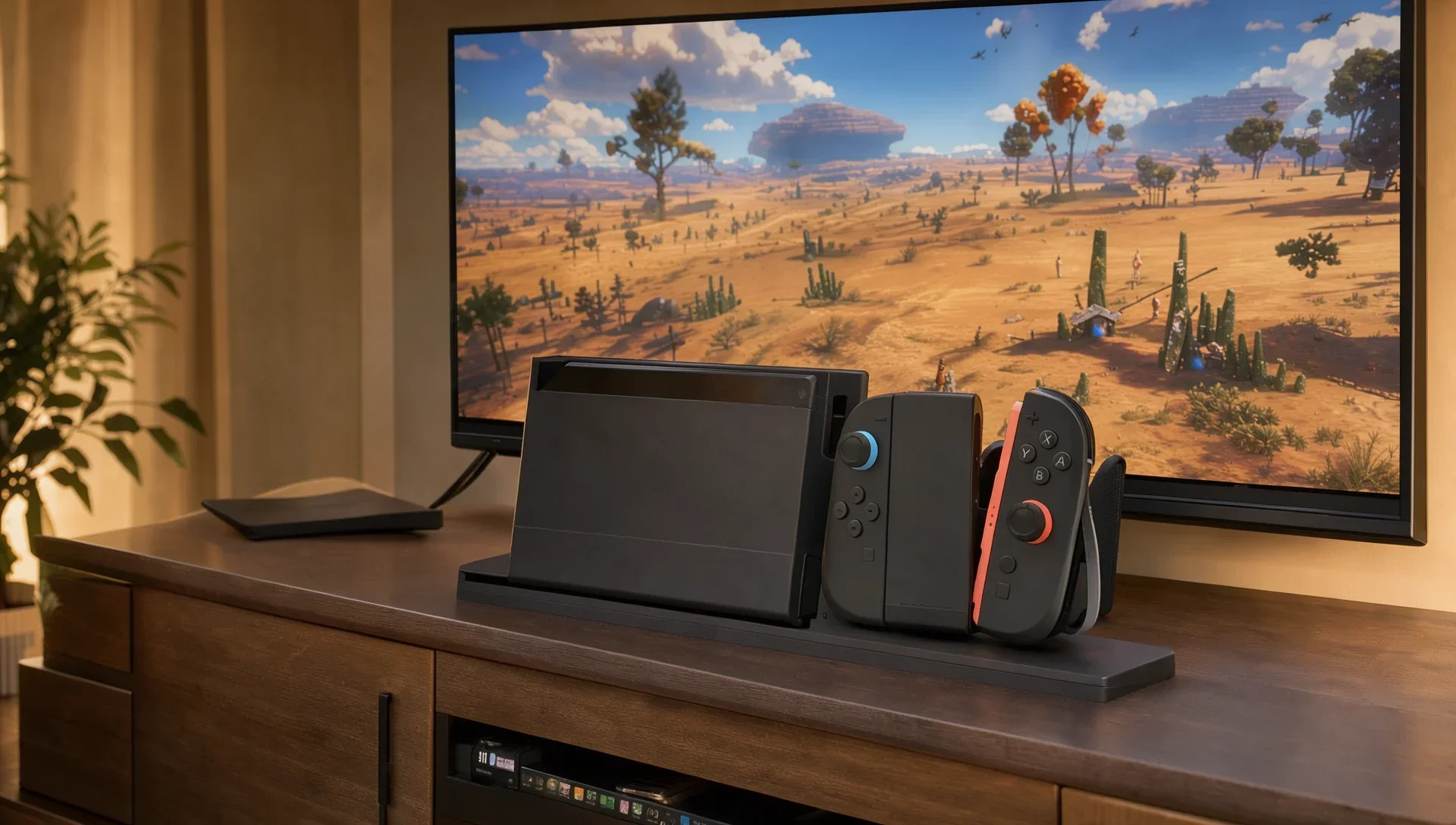
The Xbox Nano Controller is the pocket-sized gamepad Microsoft announced in October for $49.99: a little over 5 inches long, 3.5 ounces, with all 18 standard inputs and a rechargeable battery. Normally it connects to your TV over Bluetooth. With cloud connect, it joins your Wi-Fi network and talks directly to the cloud server running your game instead of going through the TV, which Microsoft says can reduce input lag.
Cloud connect is an early test for US players only. It doesn't work with every cloud gaming experience yet: for now it works on supported Smart TVs and in the browser.
To set it up:
- Set up cloud connect on the controller with the Xbox beta app on Android, or the Xbox Accessories app on PC. The PC route needs you to be enrolled in Xbox Insider.
- Follow the steps in the app to connect the controller to your Wi-Fi.
- Open a supported Xbox Cloud Gaming experience and sign in with the same Xbox account you used during setup. The controller connects through cloud connect.
Microsoft has a cloud connect setup guide with the detailed steps.
Giving feedback
Microsoft says it will use feedback from both previews to shape what ships. For the phone controller, tap the Xbox icon at the top left of the phone controls and choose Give Feedback, or use Give Feedback from the Guide on the TV. For cloud connect, use the Feedback icon in the Xbox Accessories app on PC or the Xbox mobile app.