Windows 11 Drops Its PC-to-PC Transfer Tool: How to Move to a New PC Without OneDrive
Microsoft has removed Windows 11's local PC-to-PC Migration. What Windows Backup still moves, the 5GB OneDrive catch, and how to skip the cloud.
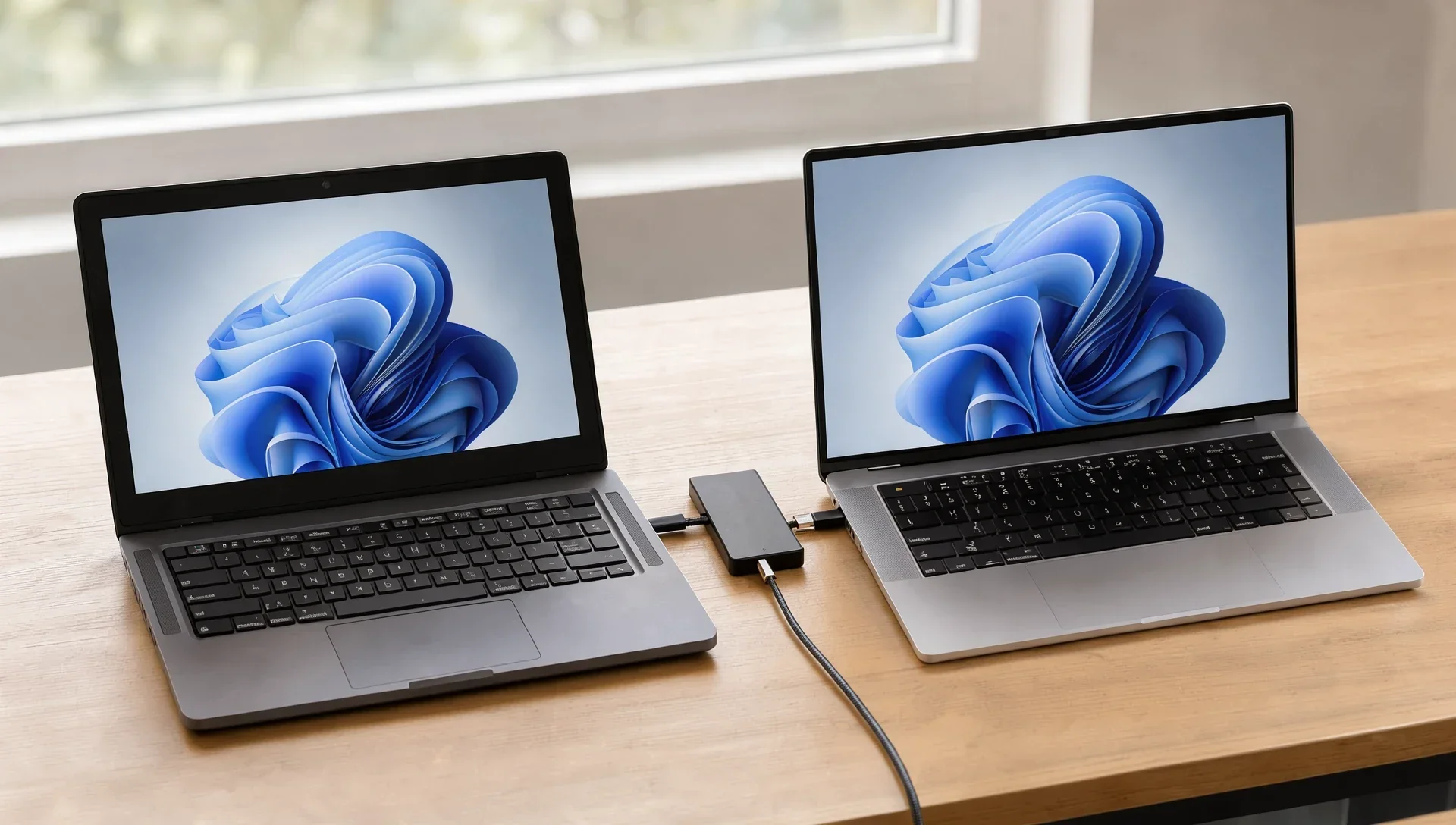
If you're setting up a new Windows PC this Black Friday, one handy shortcut is gone. Windows 11 used to be able to copy your files and settings straight from your old PC over your home Wi-Fi or network, paired with a one-time code. Microsoft has removed that tool, called PC-to-PC Migration, and now sends you to Windows Backup instead, which moves your files through OneDrive. That's fine for small libraries, but a free Microsoft account only comes with 5GB of OneDrive storage. Here's what changed, what Windows Backup does and doesn't move, and how to get everything across without the cloud.
At a glance
- What's gone: PC-to-PC Migration, the local transfer option inside the Windows Backup app ("Transfer information to a new PC")
- When: removed in the 22 September preview update (KB5124010), and, according to Windows Latest, rolled out to everyone with the 13 October Patch Tuesday update (KB5127648)
- What Microsoft recommends instead: Windows Backup, which syncs your folders to OneDrive and restores settings through your Microsoft account
- The catch: a free Microsoft account includes 5GB of OneDrive storage; more has to be bought
- The free alternative: copy your files over with an external drive, as Microsoft's own guide explains
What Microsoft removed, and when
PC-to-PC Migration lived inside the Windows Backup app. You opened it on the old PC, chose "Transfer information to a new PC", typed the old PC's name into the new one during setup, confirmed a one-time code, picked the folders you wanted and let the copy run over Wi-Fi or a wired network. Nothing went to the cloud, so the only limit was the space on the new PC. Microsoft's own screenshots showed it moving 118GB of folders in one go, Windows Latest points out.
It didn't last long. Windows Latest first spotted Windows 11 testing the tool in May 2025, Microsoft confirmed a phased rollout in June 2025, and by July 2025 there was a full support page explaining how it worked. Just over a year later, it's gone. The release notes for the 22 September update, KB5124010, are blunt: "PC-to-PC Migration is no longer available," Microsoft says, adding that the feature "previously allowed you to transfer files and settings directly from your previous PC when setting up a new Windows PC."
Microsoft lists the change under its gradual rollout, so it reaches PCs in phases. Windows Latest reports that it arrived for everyone else with the October Patch Tuesday update, KB5127648, which includes the September preview changes. Microsoft's old how-to page for the tool now opens with a single line: "This feature is no longer available. Use Windows Backup and Restore instead." Microsoft hasn't said why it pulled the feature.
What the old tool moved, and what it didn't
According to Microsoft's support page, PC-to-PC Migration copied:
- your documents, photos, videos and other files "saved across folders or drives", so not just the main user folders
- your wallpaper, theme and other personalisation settings
It never moved installed apps, saved passwords and sign-in credentials, OneDrive files, BitLocker-encrypted drives or system folders such as Program Files. So it was never a full clone of your old PC, but for files it was the easiest free option Windows had.
What Windows Backup moves instead
Windows Backup is what Microsoft now recommends, and it does some things the old tool didn't. According to Microsoft, it can back up:
- Folders: Desktop, Documents, Pictures, Videos and Music, which it syncs to OneDrive
- Installed apps: the new PC restores your app pins; Microsoft Store apps reinstall when you select the pin, and for other apps you're sent to the web to download the installer
- Accounts, Wi-Fi networks and passwords
- Personalisation (wallpaper, colours, theme, Start layout), accessibility, language preferences and other Windows settings
To restore, you sign in to the new PC during setup with the same Microsoft account; Windows spots the backup and offers to restore it. Your files come back when you sign in to OneDrive.
The limits matter, though:
- It needs a personal Microsoft account. Microsoft says work or school accounts won't work.
- Your files go through OneDrive. Microsoft says a free account comes "with 5 GB of OneDrive cloud storage (and more storage is available to purchase if you need it)". A photo or video library will blow past that quickly.
- Only five folders. Downloads and any folders outside Desktop, Documents, Pictures, Videos and Music aren't part of it, as Windows Latest notes. The old tool could move those.
- Personalisation needs space too. Microsoft says personalisation preferences "will not be backed up if you have insufficient OneDrive storage".
How to move to a new PC without OneDrive
Microsoft no longer offers a guided local transfer, but it still documents ways to do it yourself. You can copy files with a USB drive, an external disk or a network share, Windows Latest notes, "but you're on your own there".
1. Copy your files with an external drive
This is Microsoft's own fallback, in its guide to moving files with a USB drive, SD card or external hard drive. It works on Windows 10 and Windows 11:
- Connect the drive to your old PC and open File Explorer.
- Select the files or folders you want (hold Ctrl to pick several), right-click and choose Show more options, then Send to and your drive.
- Repeat for every place you keep files. Microsoft specifically lists Documents, Desktop, Downloads, Favorites, Music, Pictures and Videos.
- Browse the drive to check everything is there, then select Eject before unplugging it.
- On the new PC, plug the drive in, open File Explorer, select This PC and open the drive. Copy the folders and paste them where you want them.
The only limit is the size of your drive. One thing to check first: if your external drive is formatted with ReFS rather than NTFS or exFAT, Windows will stop opening ReFS USB and external drives from January 2027, so use a drive with a standard format.
2. Keep a File History backup on a drive or network location
File History is Windows' built-in backup tool, and it saves copies of your files to an external drive or a network location rather than the cloud. Microsoft says it backs up all your libraries automatically, including Documents, Pictures, Videos and Music, and you can add other folders by including them in a library. You turn it on from the Control Panel, under System and Security, with "Save backup copies of your files with File History".
It's a backup tool rather than a migration tool, so it won't set up the new PC for you. But it gives you an up-to-date copy of your files on a drive you control while you make the switch.
3. Mix and match
You don't have to choose all or nothing. In Windows Backup each folder has its own on/off switch, and settings, apps and Wi-Fi details are separate options. So you can:
- leave the folder switches off and move your files by external drive, so your photos and documents never go near OneDrive
- still back up your app list, accessibility, language and Wi-Fi settings, and passwords with Windows Backup, so the new PC comes back mostly as you had it (personalisation still needs OneDrive storage, Microsoft says)
- sign in to Microsoft Edge and turn on sync to carry your favourites across, as Microsoft suggests
What it means if you're buying a new PC
Before you switch off the old machine, work out how much you actually have to move. If your Desktop, Documents, Pictures, Videos and Music folders fit in 5GB and you already use OneDrive, Windows Backup is the simplest route, and it brings back apps, Wi-Fi networks and passwords, which the old local tool never did.
If you have more than that, or you'd rather keep your files out of the cloud, an external drive is now the way to go, and it's cheap insurance anyway. Just remember to grab Downloads and any folders outside your user profile, because nothing will remind you any more. And if your new PC has a smaller SSD than the old one (storage hasn't got cheaper lately, as our guide to why RAM and SSD prices are rising explains), sort out what you really need before you start copying.